Navigating the Attendee Hub
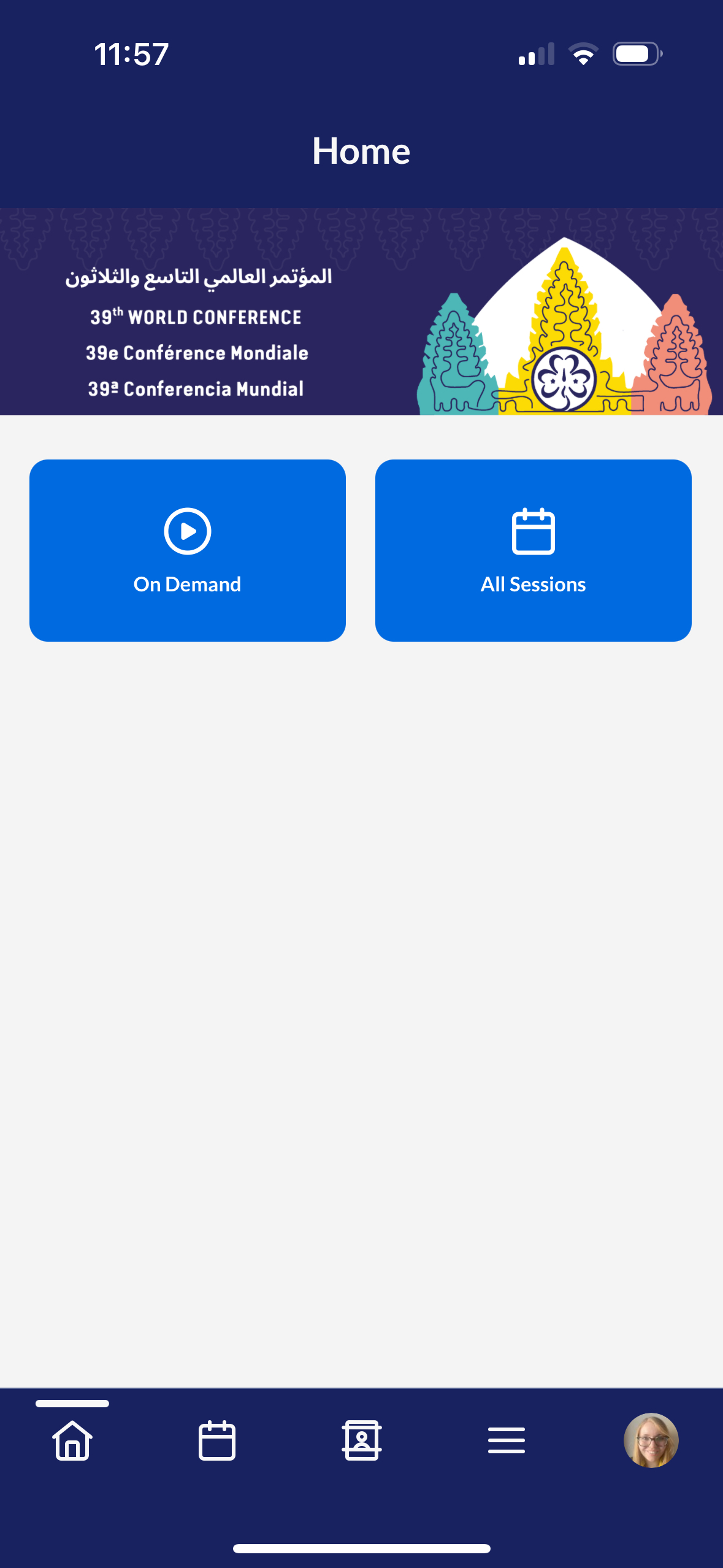
Once you have logged into the Attendee Hub, this is what you will see
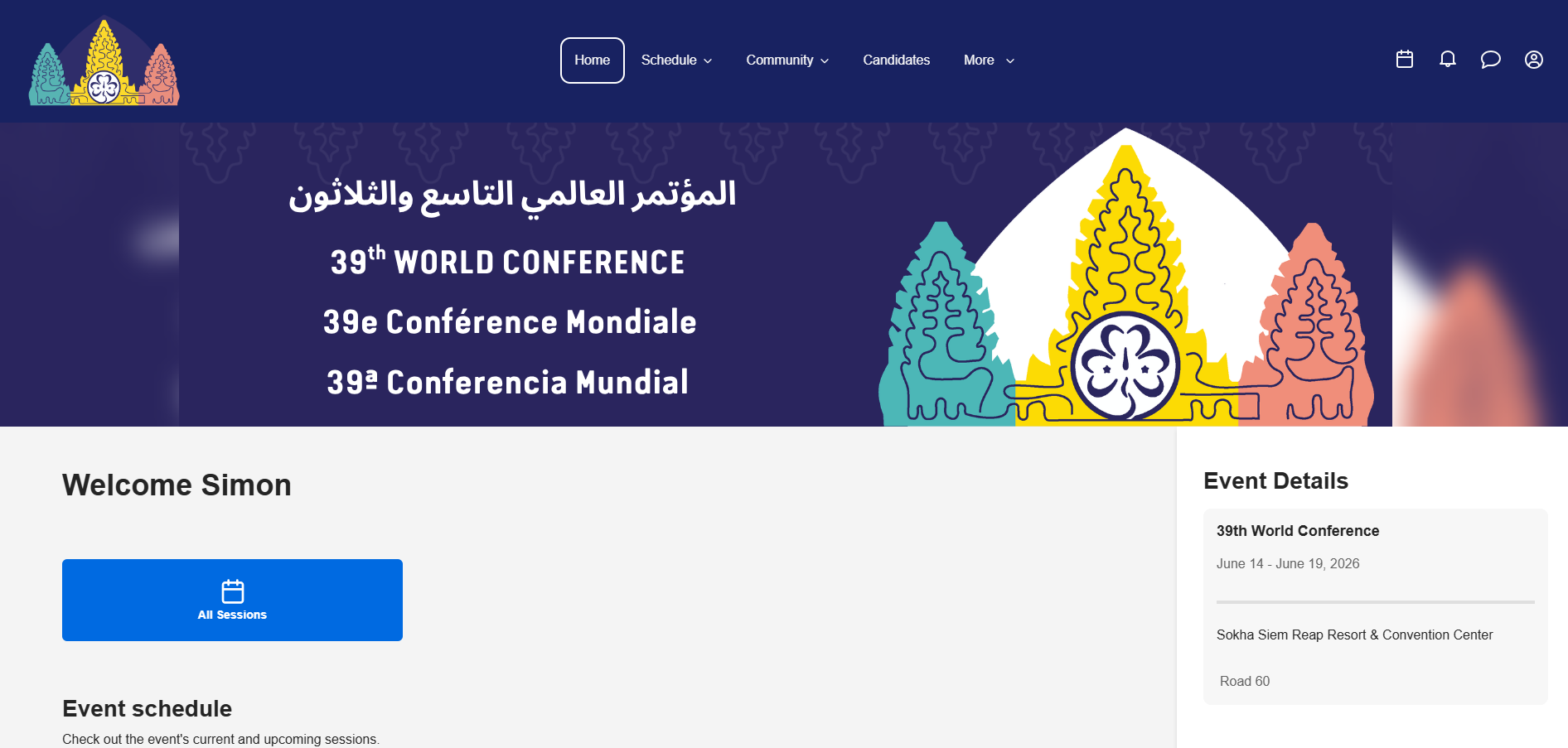
Using the Attendee Hub on a laptop / computer / mobile browser
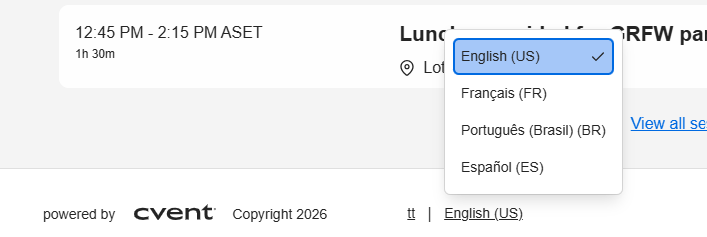
To change the language on the Attendee Hub, you can scroll down to the bottom of the screen and select English (US), Español (ES), or Francais (FR) for French and Arabic - see image below.
- To navigate to other areas of the Attendee Hub, hover over the dropdown options in the toolbar at the top of the page.
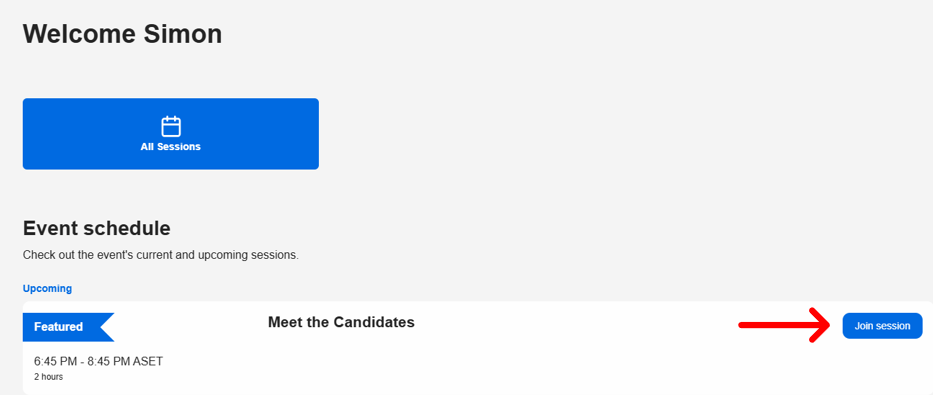
How to join the online sessions from the homepage
- A blue button with the words “Join session” will appear to the right of an upcoming session five minutes before a session is due to start (see image below)
- To join the virtual session, simply click this button and you will be taken directly to the zoom meeting, which will open in a different window.
How to join the online sessions from the All Sessions page
To navigate to the “All Sessions” page, hover over the word “schedule” on the top toolbar (see image below) and click “All Sessions”.

On this page you will see a full list of all sessions throughout the conference. Up until five minutes before any session starts, you will see a faint “Join Session” button (see image below)
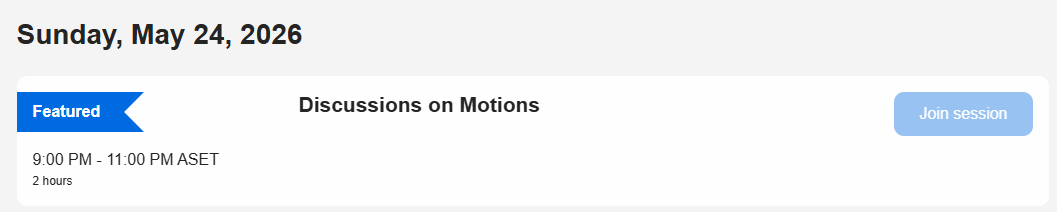
This button will turn blue five minutes before a session is due to start and you can simply click this button to join the virtual meeting on Zoom, which will open in a different window.
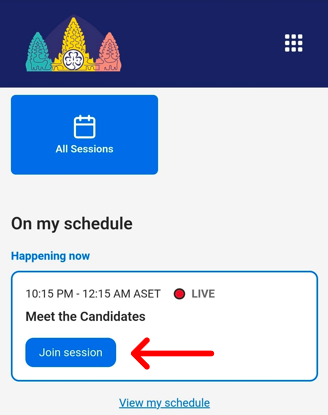
How to join from a web browser on your mobile phone.
To join the virtual sessions, simply click the "Join session" button and you will be taken directly to the zoom meeting, which will open in a different window. This is the same whether on the homepage or the “All sessions” page
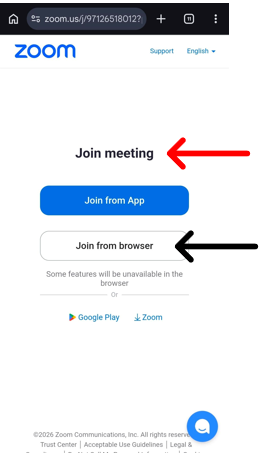
If you have the Zoom app on your mobile, simply click “Join Meeting” button (Indicated by the red arrow on image below)
If you do not have the app installed on your mobile, you can either click the “Join from your browser” option, indicated by the black arrow, or choose to install zoom.
How to adjust the sessions into your time zone
Click on 'All sessions'
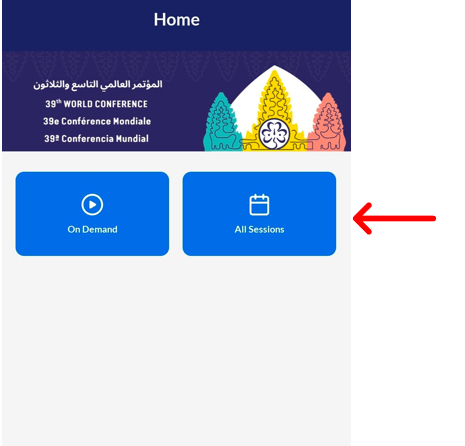
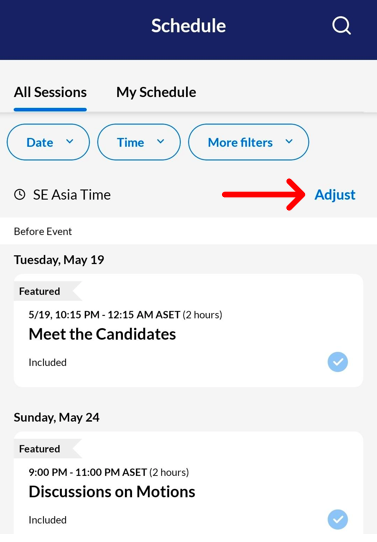
Then click the 'Adjust' button, which is located above all of the sessions. See image below;
Using the Attendee Hub on a mobile app
How to change language on the Attendee Hub
Click on your profile icon, in the bottom right hand-side of the app. If you have added a picture of yourself it will be displayed here.
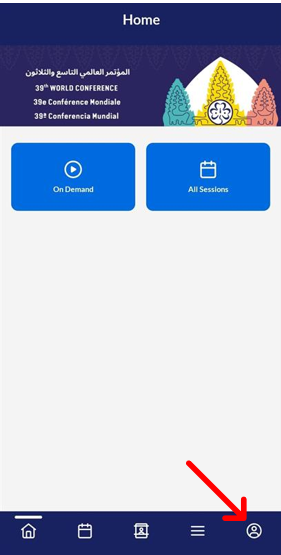
You will then see the below image. You then need to click on 'view profile'.
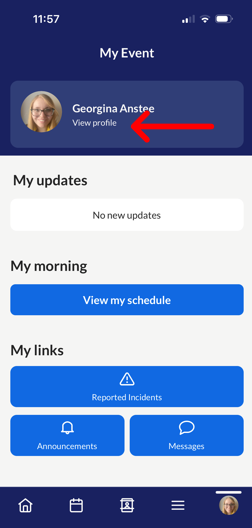
You will then see your profile information, see below image. Then click top right hand - it looks like a cog.
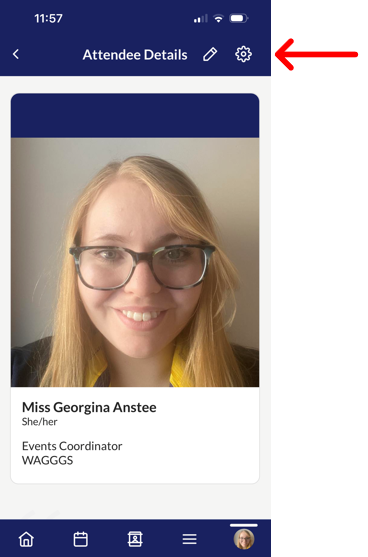
You will then see the below image. Please then select 'language'.
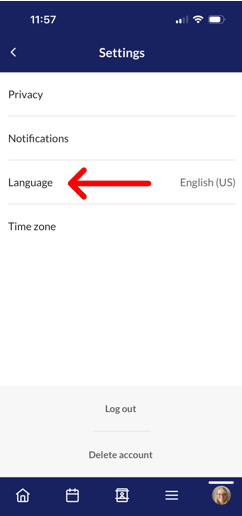
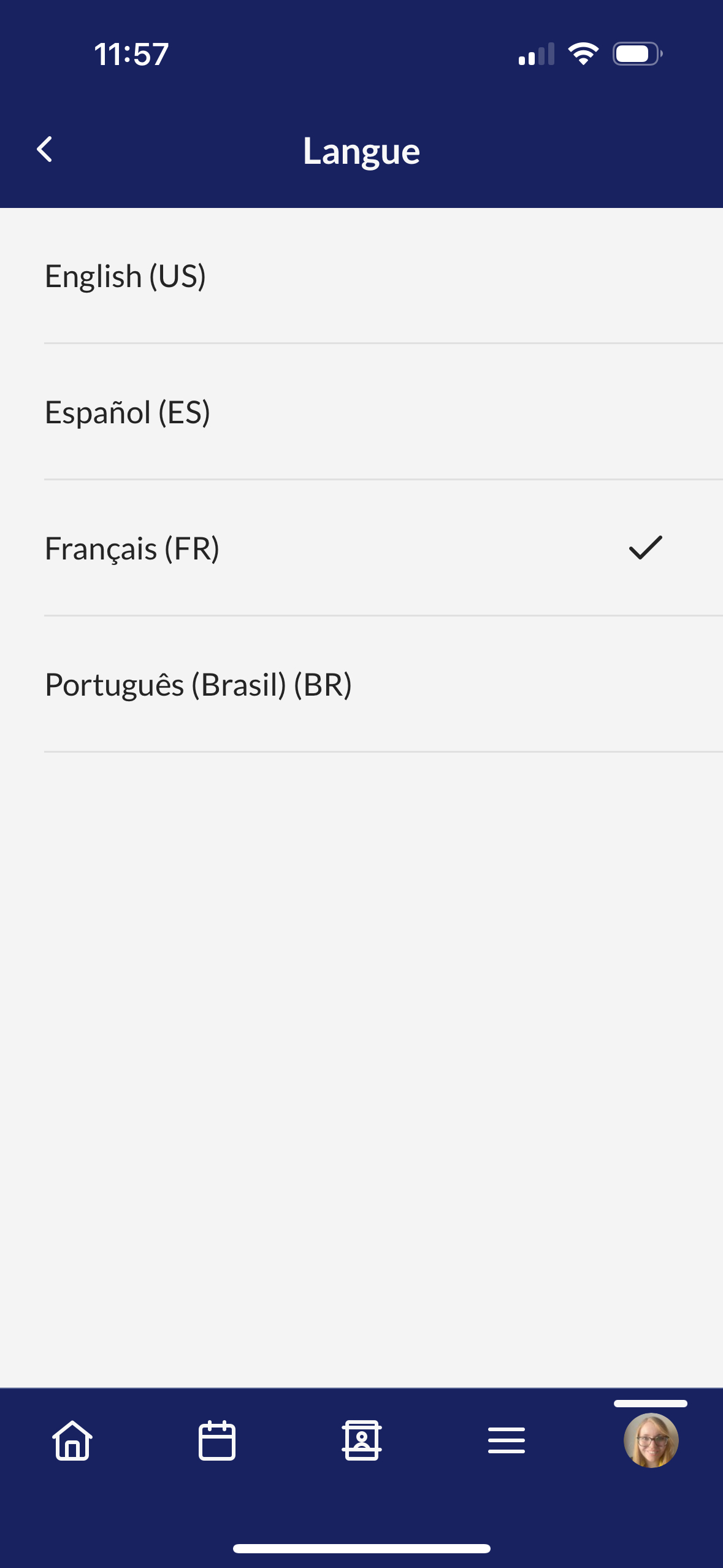
Once you have clicked the language button, you will then be able to choose, English (US), Español (ES), or Francais (FR) for French and Arabic. Once you have selected your language, click the back arrow button.
How to join the online sessions from your mobile phone
To join online sessions from your mobile phone, you must use the web browser version. Session links will not appear through the event app.
How to adjust the sessions into your time zone
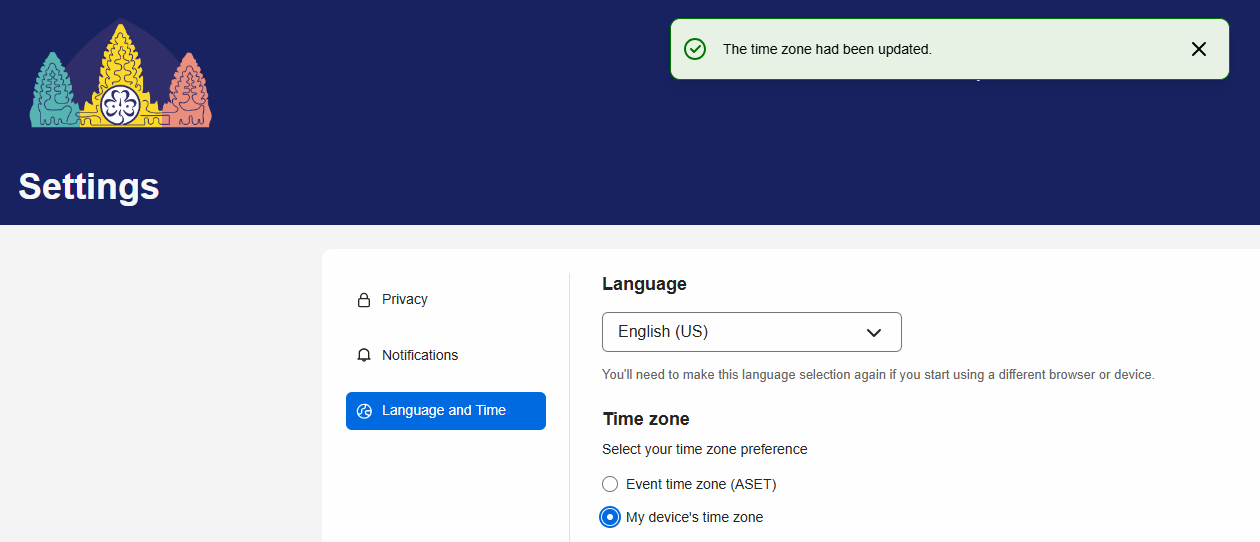
1. Click the profile icon at top right hand of your screen, then select "Settings"

2. Then click the "Language and Time" button, and select "my device's time zone". See image below;