


💻📱 Logging into the Attendee Hub 💻📱
The steps for accessing the Attendee Hub are the same whether using a computer or mobile browser.
- Click this link to go to the log-in page
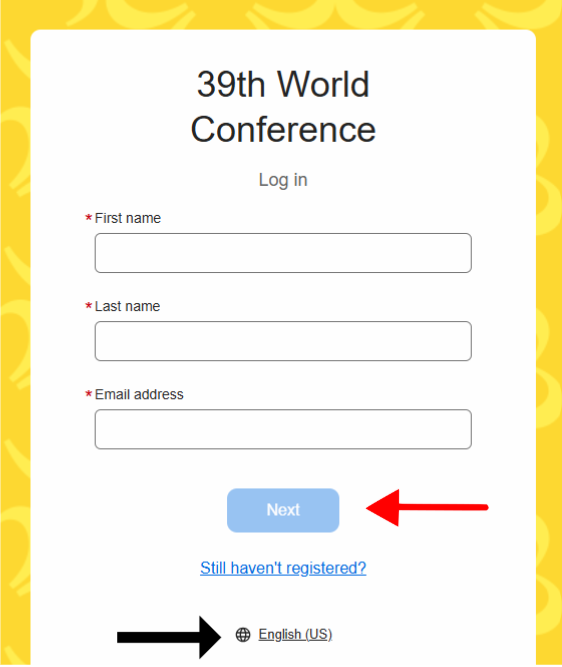
- To change the language, click the button that says “English (US)”, “Français (FR)” "Español (ES)", shown on the image below by the black arrow. PLEASE NOTE: If you are an Arabic speaker, please select "Français (FR)”. The app details will then appear in both French and Arabic. This is a system error that we are working with Cvent to correct.
- On the log-in screen (see image below), you will need to enter your First Name, Last Name and the Email Address that you used when registering.
- Click the blue button that says “Next” shown on the image below by the red arrow
- After clicking the “Next” button, you will see the screen below asking for a verification code
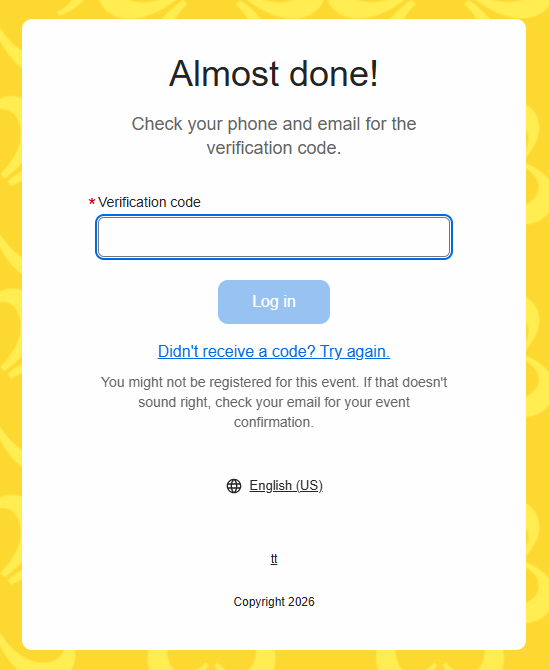
A six digit verification code will be sent to your email address (and your mobile number, if you entered this during registration).
Please be patient, as the verification code can sometimes take a moment to come through. Make sure to check your junk folder in your email.
Your verification Email will look similar to the below image
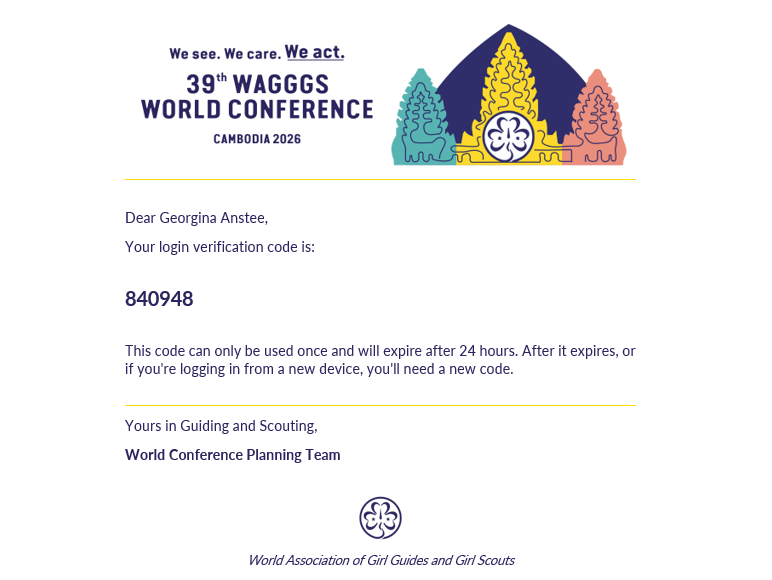
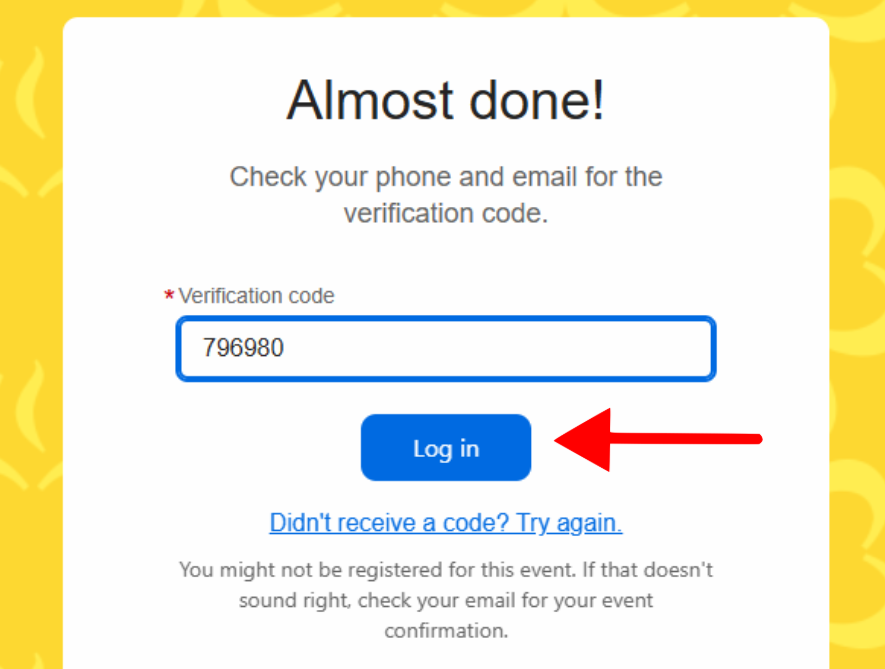
Enter the six digit verification you receive (example shown above) into the log-in page on Cvent and click the blue “Log in” button (see image below)
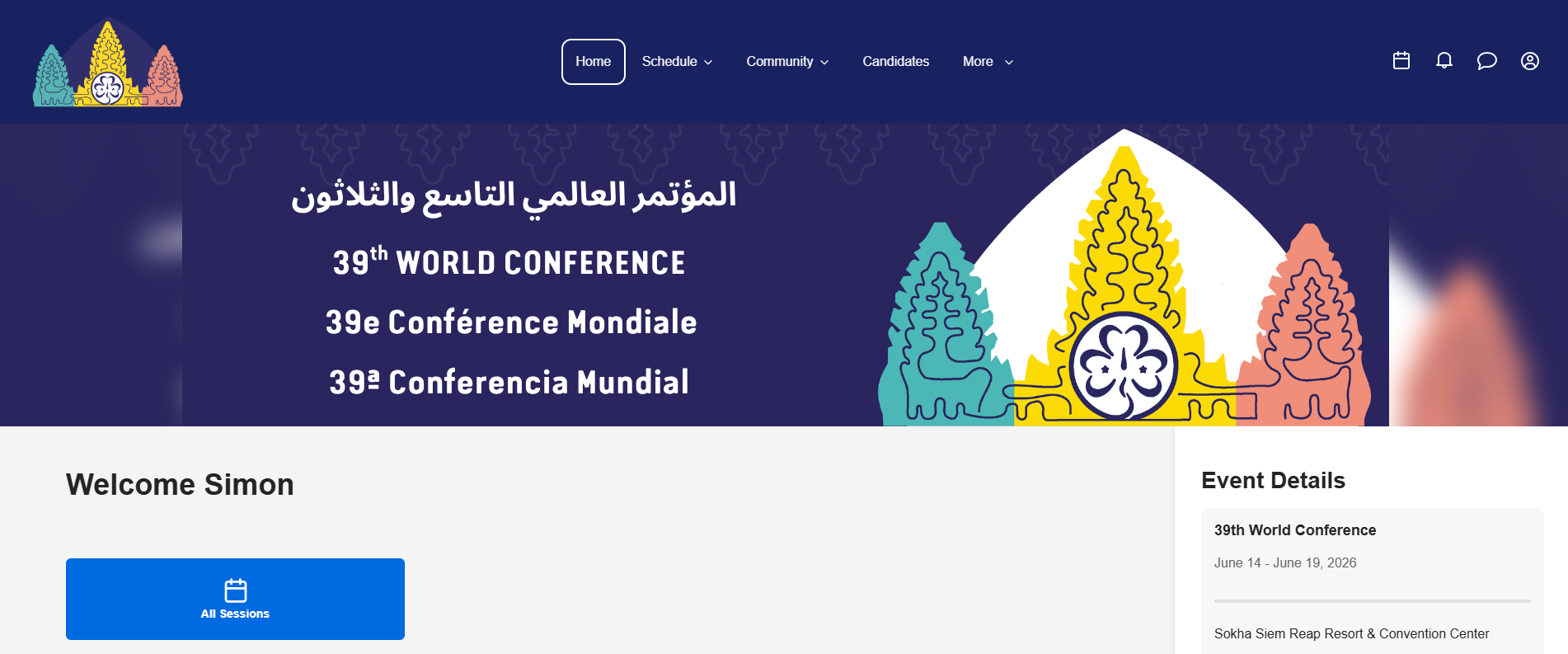
- You will now be taken to the Attendee Hub homepage (see image below)
Downloading and logging into the Event App
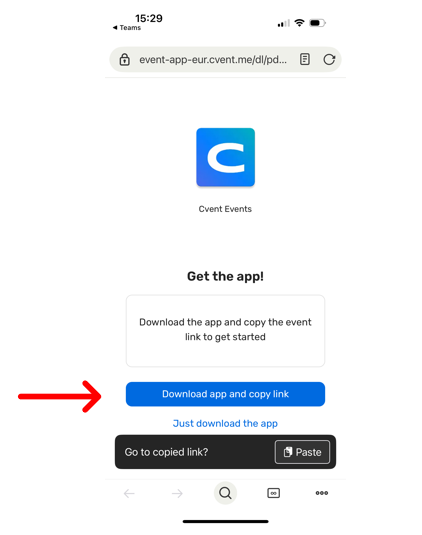
- Follow the mobile app link here
Click the 'Download app and copy link'
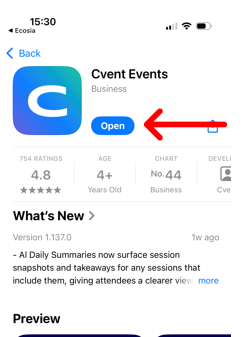
On your app store, click 'open'
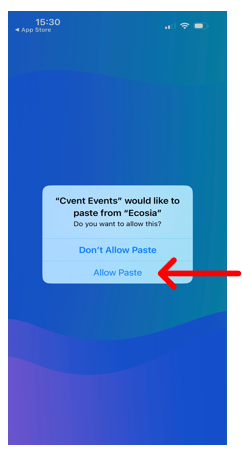
In the pop-up click 'Allow paste'
Add in your first name, last name and email address. These details must be the same as what you used to register yourself.
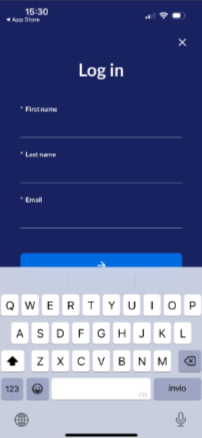
You will then receive a login code via text and email
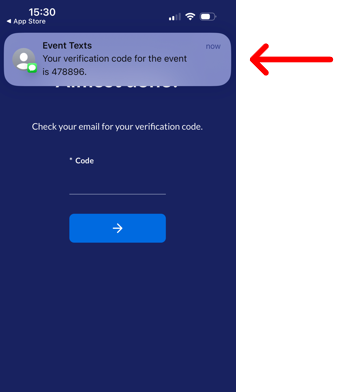
- You will then be logged into the app and you can click here to find out how to navigate the event app