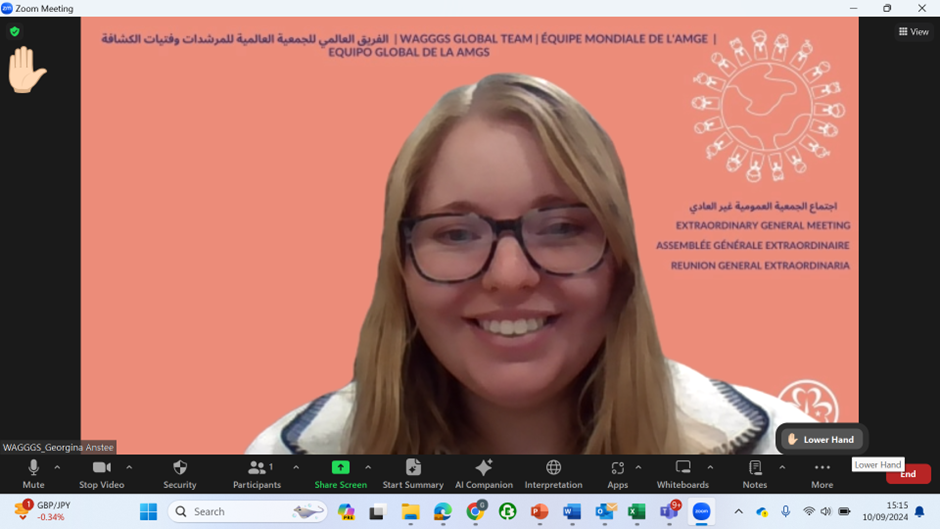
How can I find the interpretation?
To access interpretation during the EGM you need to click on the Globe icon and then select your preferred language, see image below;
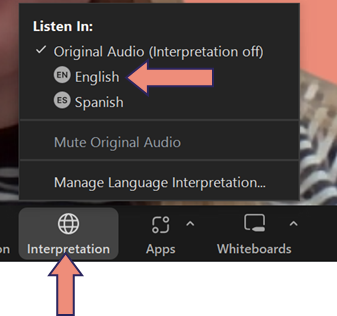
*Please note, you do not have to change your language when the speaker is talking in your preferred language
How do I rename myself in Zoom?
To rename yourself during the meeting you need to follow these steps
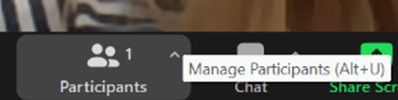
1. Click on the Participants icon at the bottom of the screen. It is displayed as two people
2. This will bring up a side panel. You can then find your name, which will be at the top of the list of all participants and will have ‘(me)’ in brackets. You can then click the blue ‘more’ button and click rename. Please see images below;
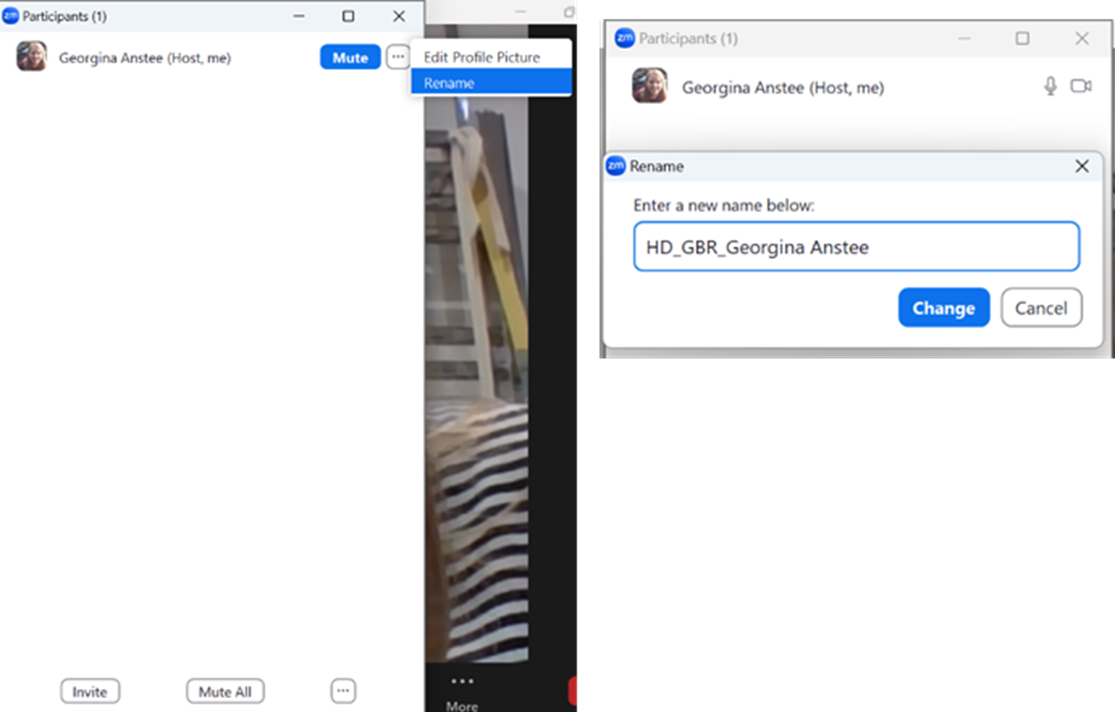
We will ask you to rename yourself during the EGM using the following format:
Role_3 letter country code_name.
An example of this would be;
- Head Delegates: HD_GBR_Georgina Anstee
- Delegates: DEL_GBR_Georgina Anstee
- Observers: OBS_GBR_Georgina Anstee
- Guests: Guest_Georgina Anstee
You can find your 3 letter country codes here
*Please note, you are unable to change your name whilst you are in the waiting room.
How to change your Zoom background?
Please follow these steps to add the Zoom background:
1. Download the Zoom background attached to this circular and save it in your files.
2. When you have joined the Zoom meeting, click on the on the arrow next to the camera icon at the bottom of the screen. When you have clicked on the arrow you will see a list of options. In this list you need to select ‘Choose Virtual Background…’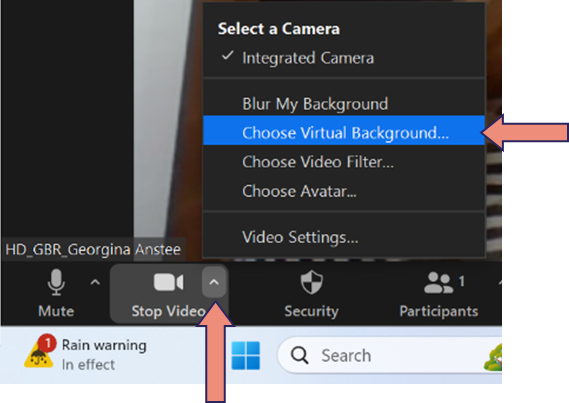
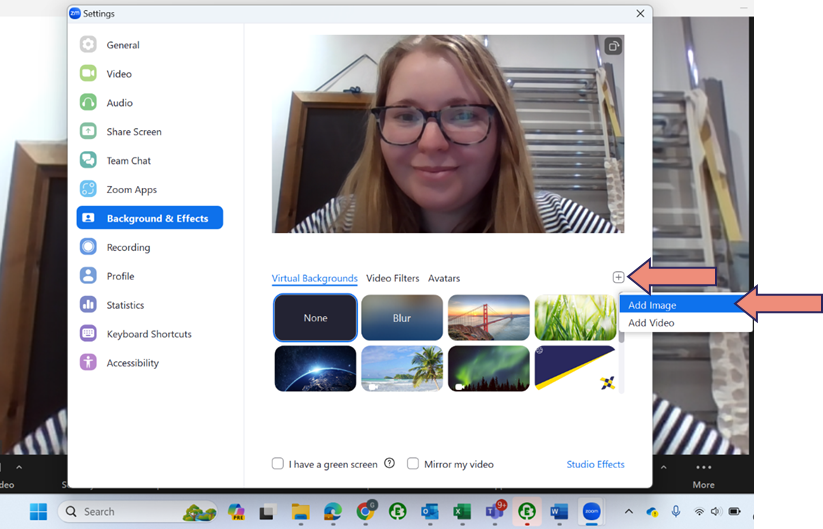
3. Once you have clicked on ‘Choose Virtual Background…’ A panel will pop up. In this panel you need to click the ‘+’ button and ‘Add Image’, you can see this below;
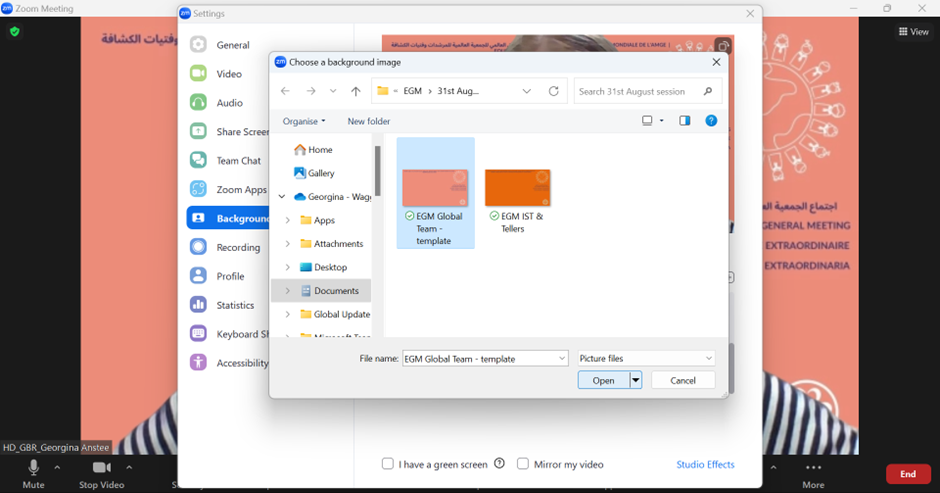
4. Once you have clicked Add Image, you will be able to see your files. In your files you can then find the EGM Zoom background and either double-click on the image or press open to add the background;
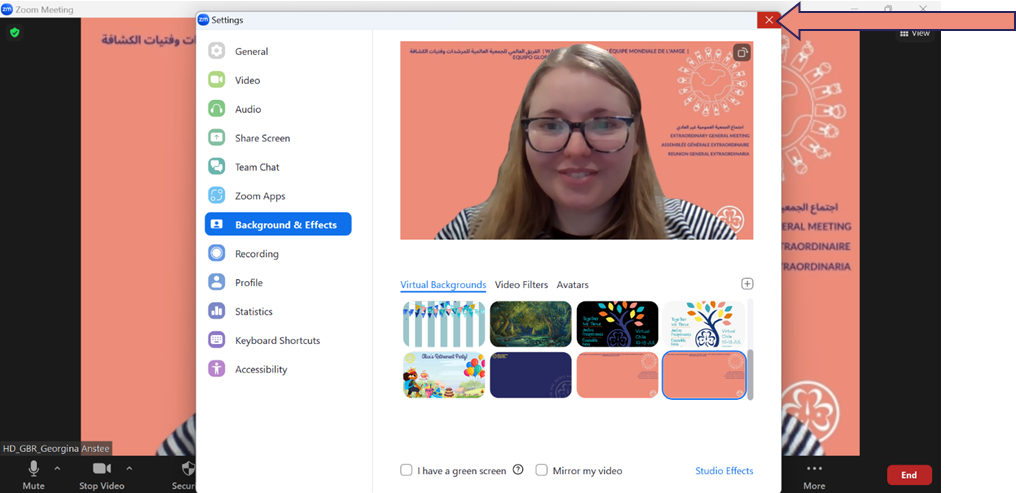
5. Once you have added the background you will see the preview of it in the panel. You can now exit the panel and the background will be applied;
To raise your hand on screen, please follow these instructions:
- Click on the 3 dots called More
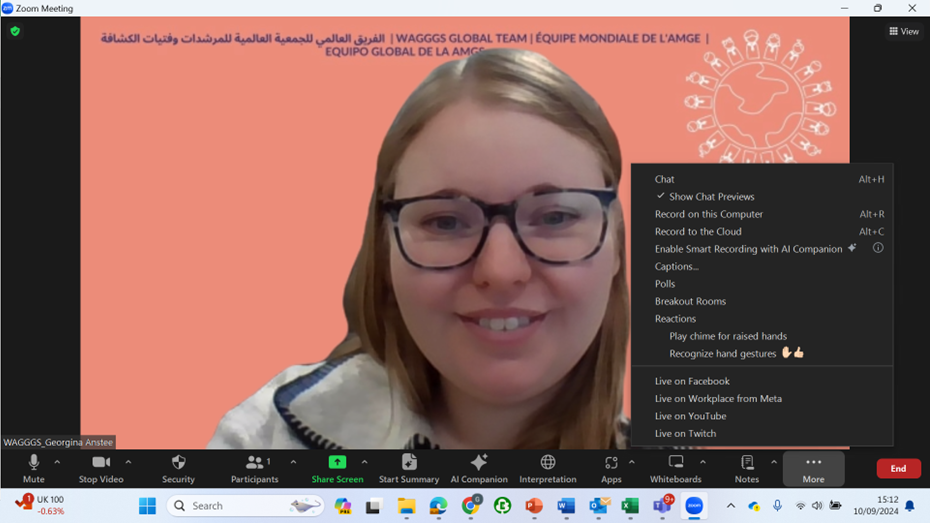
2. Please then click the Reactions button
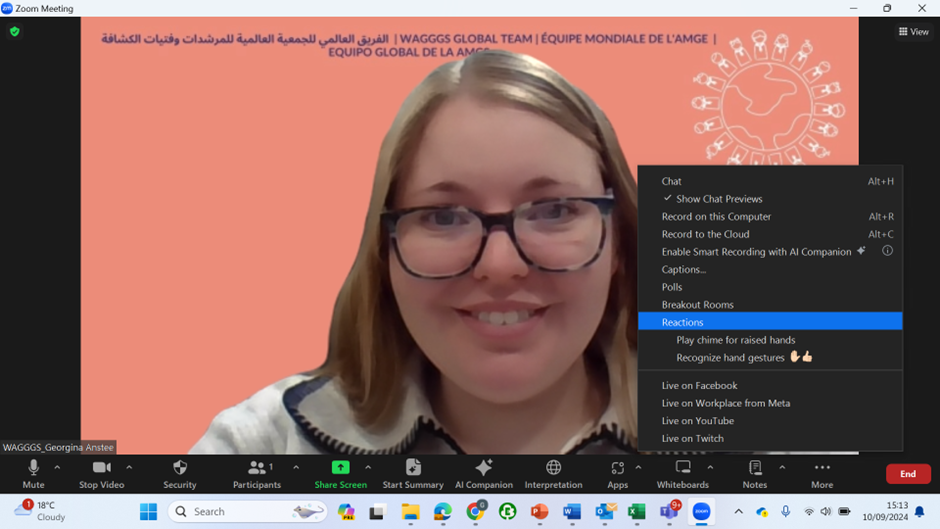
3. Once you click Reactions, you will see the display below where you can select raise hand
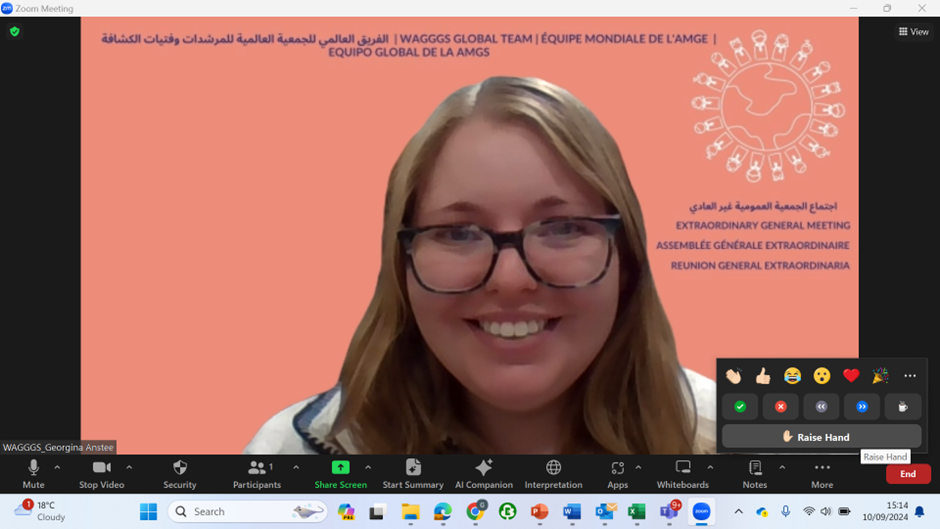
4. Once you have raised your hand, you will see your hand raised on the left hand of your screen